Icons help operators recognize actions, distinguish equipment states, and navigate an HMI. As a Perspective application grows, maintaining a consistent icon library becomes another part of managing the project.
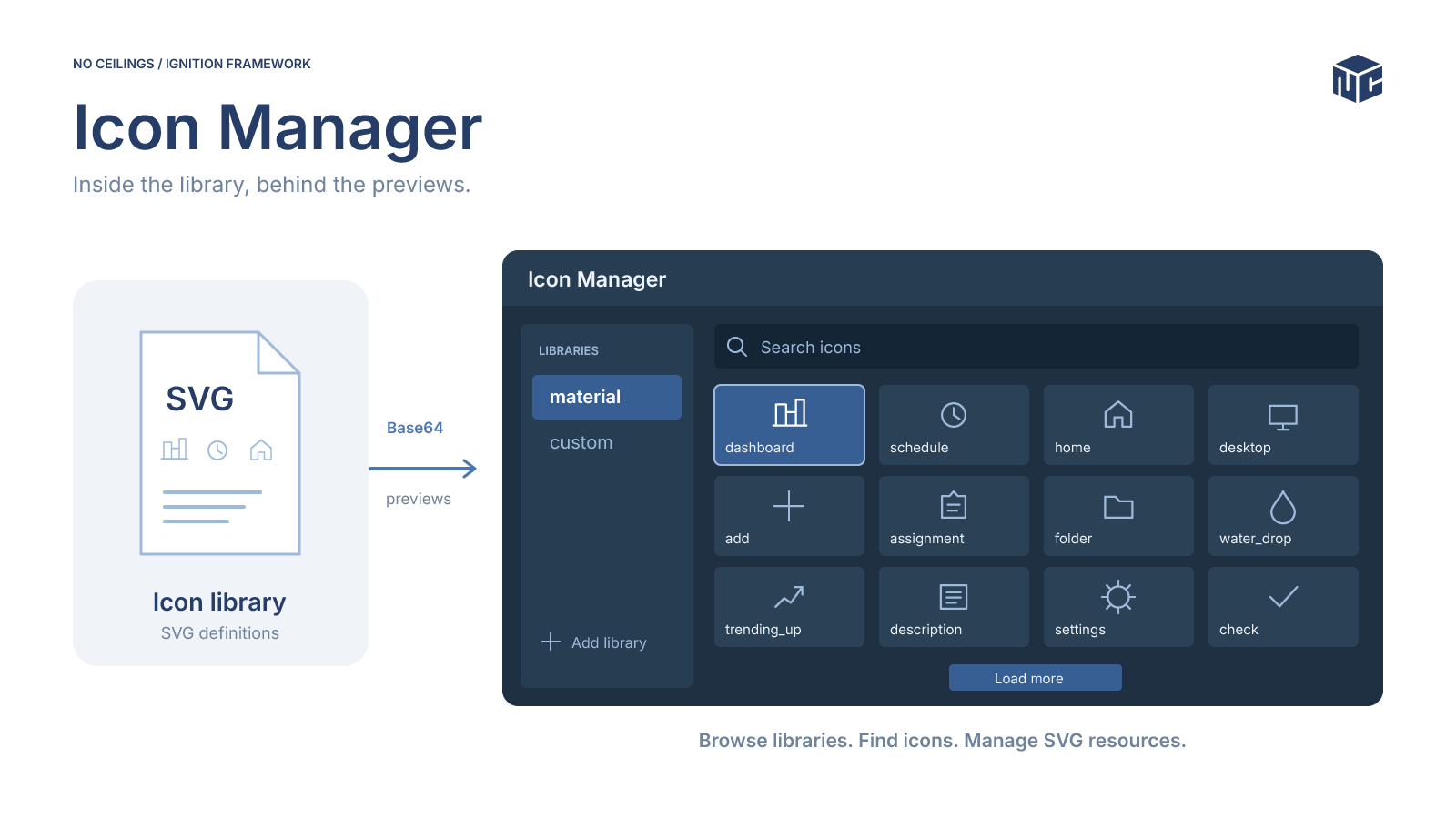
We developed the Icon Manager as part of our Ignition framework to make SVG libraries easier to browse and maintain from a Perspective interface. The tool supports searching and selecting icons, adding and deleting libraries and individual icons, and exporting SVG content. Building it also revealed two different performance concerns: the cost of rendering many previews and the size of the data moving through Ignition.
Bringing icon management into Perspective
Perspective references icons using a library and icon identifier, such as material/location_on. Behind those references are SVG library resources containing icon definitions. Maintaining a library is therefore different from simply selecting an icon on a component.
- Browse and search: Select a library, preview icons, and filter by name.
- Manage libraries: Add or remove SVG libraries from the framework.
- Manage icons: Upload SVG content and remove individual definitions.
- Export content: Download individual icons or complete libraries for reuse.
The Icon Manager is a framework development tool, not a replacement for Perspective’s built-in Icon component. It manages the resources those components reference.
Separating the interface from library operations
We separated the interface that users interact with from the scripts responsible for changing Gateway resources. The main view coordinates library selection, initialization, refresh, and drawer visibility. Reusable containers handle browsing, selection, uploads, and confirmation. Shared scripts perform the library operations.
| Layer | Responsibility |
|---|---|
| Main Perspective view | Coordinates library selection, browser state, drawers, and refresh. |
| Browser and forms | Handle search, visible previews, selection, uploads, and confirmation. |
| Shared icon module | Maintains library metadata, cache, and add, delete, and export operations. |
| File and SVG utilities | Read, parse, rebuild, and write SVG resources and request rescans. |
When a user adds an icon, the form submits uploaded SVG content through a Perspective message. The main view uses its selected-library state to determine the destination and calls the shared icon operation. The backend rebuilds the library SVG, updates its count metadata, and requests resource rescans. The view then refreshes its cache and browser data.
Modules such as perspective.icons, util.svg, and gateway.files belong to our framework. They are not built-in Ignition scripting APIs.
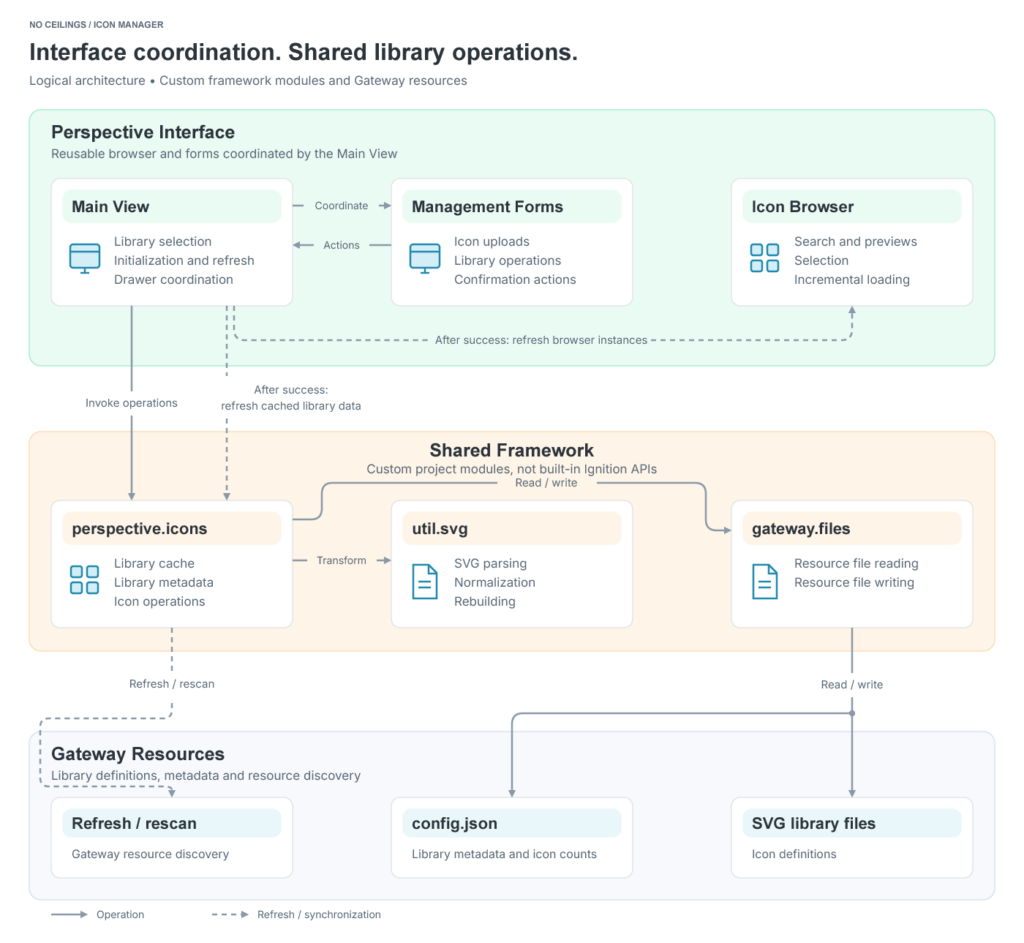
Icon Manager Architecture
The Perspective interface coordinates user actions while shared scripts manage the underlying library resources.View Image
Why the icon preview grid needed a different approach
Our initial approach displayed icons using Perspective’s Icon component inside repeated views. It was straightforward to implement, but larger collections made the interface slower to use.
Inline SVG versus image previews
SVG markup can contain paths, groups, and other elements. Rendering many Icon components adds those SVG elements to the page alongside the surrounding repeated component structure. The practical cost depends on the number and complexity of icons, the view structure, and the browser environment.
Instead, we generate individual SVG previews from library definitions, encode the markup as Base64, and display the results as background images in the repeated items. This preserves scalable vector artwork without inserting each preview’s internal SVG elements into the page DOM.
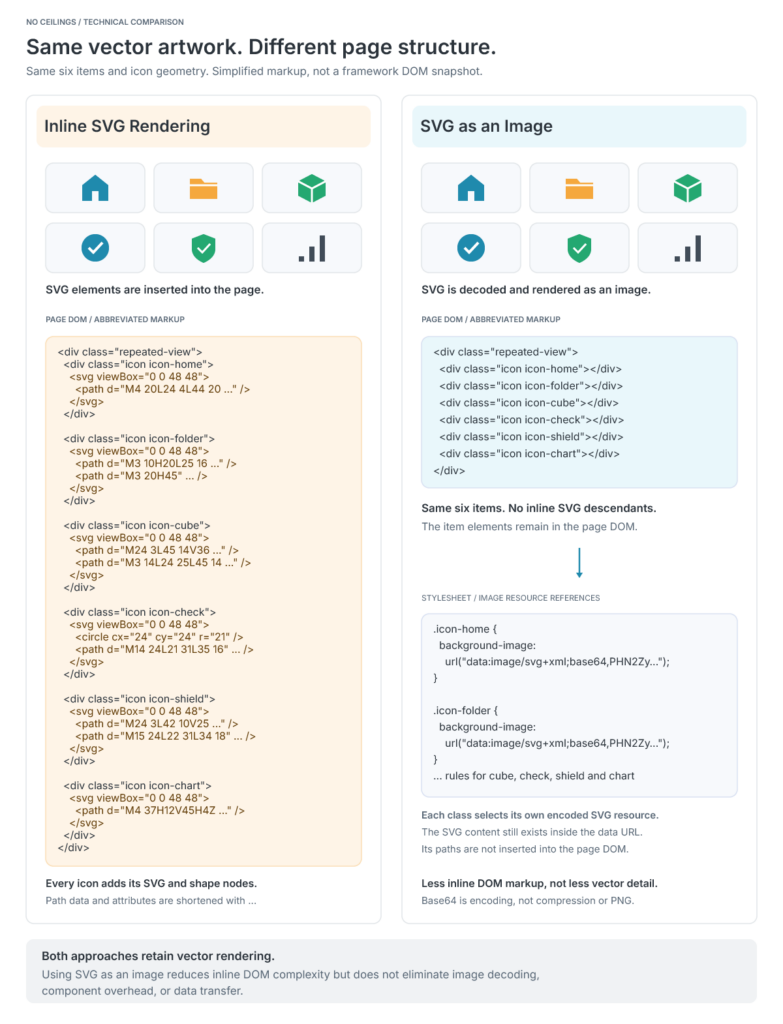
SVG rendering comparison
Using SVG as an image reduces inline page markup, but repeated components and image decoding still have a cost.View Image
Keeping the displayed collection bounded
Changing the preview format was only part of the solution. The browser also controls how many items appear at once. Its configured defaults are an initial unfiltered slice of 50 icons, an additional 25 per load-more action, and a maximum of 250 displayed items. Search filters icons by label.
These values are our framework defaults, not limits imposed by Ignition. The shared icon module also maintains an in-memory cache of library metadata, parsed SVG definitions, and prepared instance data. Caching reduces repeated preparation, while the browser’s limits control the visible collection. Neither automatically guarantees a small property payload.
The second constraint: message size
While developing the manager, we also encountered a message-too-large error when working with a large collection of encoded SVG previews. Moving the previews out of inline SVG markup addressed one rendering concern, but the image data still had to be transferred.
Base64 encoding typically adds roughly one-third to the original byte count before transport compression. Thousands of previews can therefore produce a substantial payload even when individual icons are small. Reducing page complexity does not necessarily reduce communication volume.
Version-specific Designer configuration
Our investigation involved the Designer and Gateway message-size setting ignition.designer.websocketMaxBinaryMessageSize. The documented default was 2048 KB before Ignition 8.3.7 and 4096 KB beginning with 8.3.7. Ignition 8.3.9 introduced additional handling for large Gateway push messages and default compression for client and Designer message payloads.
For affected older installations, the JVM argument below illustrates increasing the threshold to 4096 KB. The value does not increase the documented default in 8.3.7 and later.
wrapper.java.additional.N=-Dignition.designer.websocketMaxBinaryMessageSize=4096Replace N with the next available additional-parameter number. Gateway configuration changes require a restart. The corresponding argument for an affected Designer Launcher application entry is:
-Dignition.designer.websocketMaxBinaryMessageSize=4096The Gateway and Designer Launcher settings apply to their respective processes. Changing one does not automatically configure the other. See the Inductive Automation forum investigation, the Gateway Configuration File Reference, and the 8.3.9 release notes for version-specific context.
Keeping library resources synchronized
An icon change involves more than updating the preview grid. The shared operation rebuilds the persisted SVG, updates the icon count in config.json, and requests Gateway resource rescans. The main view then refreshes the cache and browser.
The distinction matters because the menu count comes from config.json, while the browser items come from parsed SVG definitions. If those sources disagree, the displayed count can differ from the available icons. Keeping the update and refresh steps together makes that relationship easier to maintain.
What we learned
The Icon Manager started as a practical way to maintain SVG libraries without leaving our Perspective framework. It also became a useful exercise in separating UI state, resource operations, rendering complexity, and data transfer.
For a slow icon grid, examine the rendered markup and repeated component count. For oversized messages, examine the payload and the relevant Ignition communication path. For stale library information, examine the resource update and cache refresh sequence. These are distinct problems, even when they appear in the same interface.
Those lessons extend beyond icon libraries to other Perspective applications that display large collections of reusable graphics or manage Gateway-backed resources. The Icon Manager gives us a useful development tool and a clearer understanding of the tradeoffs behind it.